Complete Printer Setup & Driver Installation Guide
Setting up a printer correctly is essential to ensure smooth and reliable printing performance. Many users experience problems during printer installation because of incorrect drivers, connectivity errors, or incomplete configuration. These issues can cause printers to show offline status, print jobs getting stuck in the queue, or the printer not being detected by the computer.
A proper printer setup process includes installing the correct printer driver, configuring the connection between the printer and computer, testing the device, and maintaining the printer regularly. Whether you are installing a printer for personal use at home or configuring printers in an office network environment, following the correct setup procedure ensures efficient and uninterrupted printing.
Understanding Printer Drivers
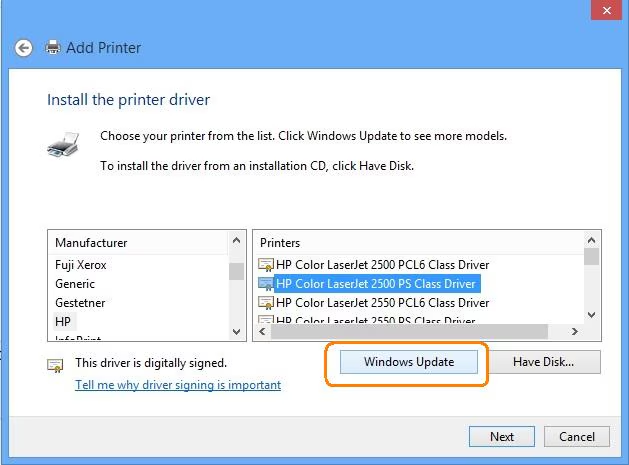
A printer driver is a software program that allows your computer to communicate with the printer hardware. When you send a document to print, the operating system cannot directly communicate with the printer without a driver. The driver converts your document into a format that the printer understands.
Without the correct driver installed, the printer may not function properly or may not work at all. Outdated or incompatible drivers may cause slow printing, incorrect formatting, missing printer features, or system errors.
Installing the latest driver ensures that your printer operates with full functionality and optimal performance. Printer manufacturers regularly release updated drivers to improve compatibility with new operating systems and fix known issues.
Step-by-Step Printer Setup Process
Before installing printer software, locate the exact printer model number. This information is typically printed on the front or back of the printer. Identifying the correct model helps ensure that the correct driver is downloaded.
Visit the official website of the printer manufacturer such as HP, Canon, Epson, or Brother. Navigate to the support section and search for your printer model. Select the operating system installed on your computer and download the latest driver version.
Open the downloaded driver file and run the installer as an administrator. Follow the instructions provided by the installation wizard. The setup program will guide you through each step of the installation process.
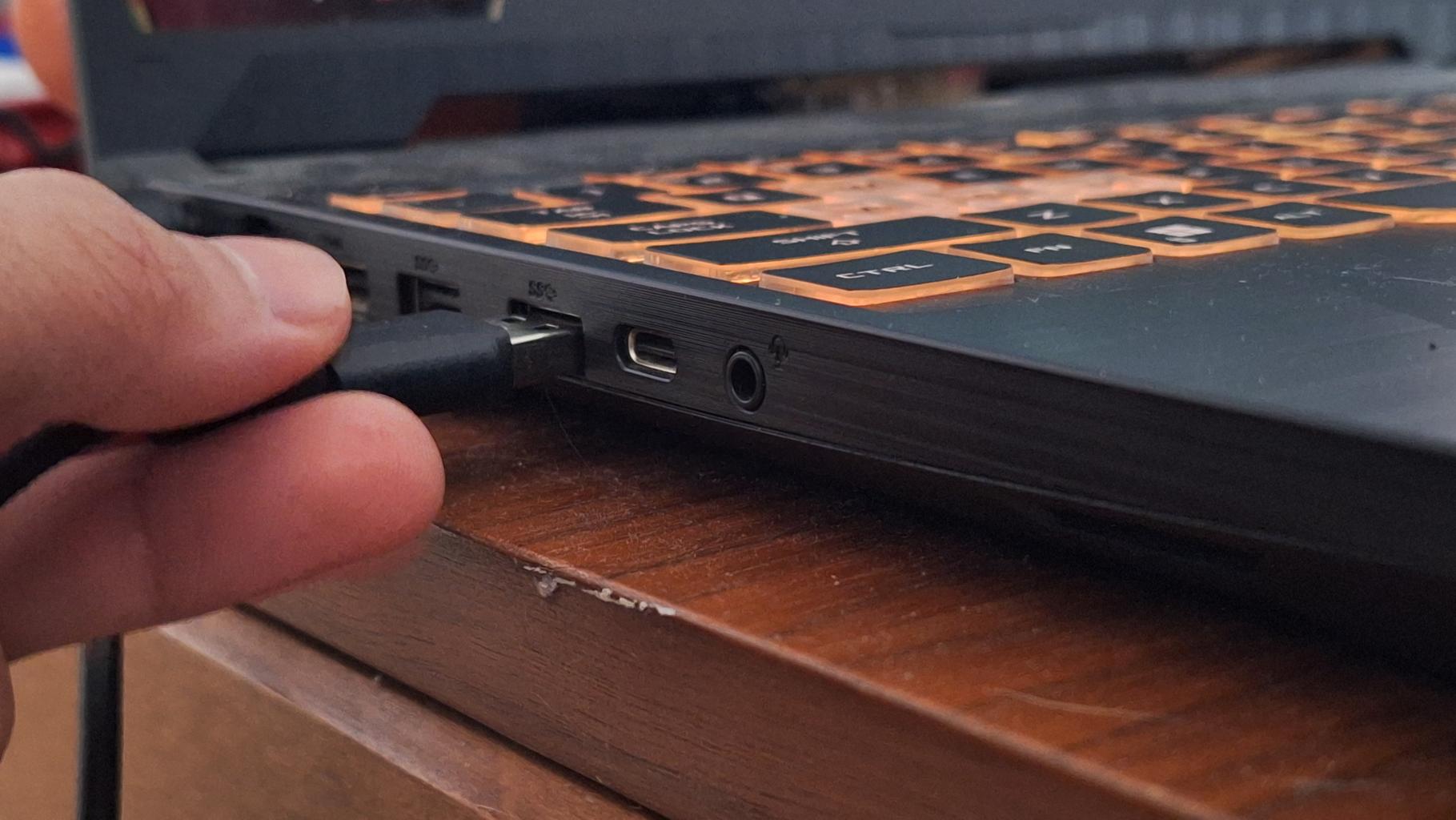
When prompted during installation, connect the printer using a USB cable or through a wireless network connection. The installer will detect the printer and complete the setup automatically.
After the installation is complete, restart your computer. Restarting ensures that the printer driver is fully integrated into the operating system and allows system services like the Print Spooler to refresh.
Printer Connection Methods
Modern printers offer several connectivity options. Choosing the right connection method depends on how you plan to use the printer.
- USB Connection: The printer is connected directly to the computer using a USB cable. This method is simple and reliable.
- Wireless Printing: Wireless printers connect to your WiFi network and allow printing from multiple devices.
- Network Printers: In office environments, printers are connected to a network server so multiple users can access the same printer.
Wireless printing has become increasingly popular because it allows users to print from laptops, smartphones, and tablets without connecting cables.
Common Printer Setup Problems
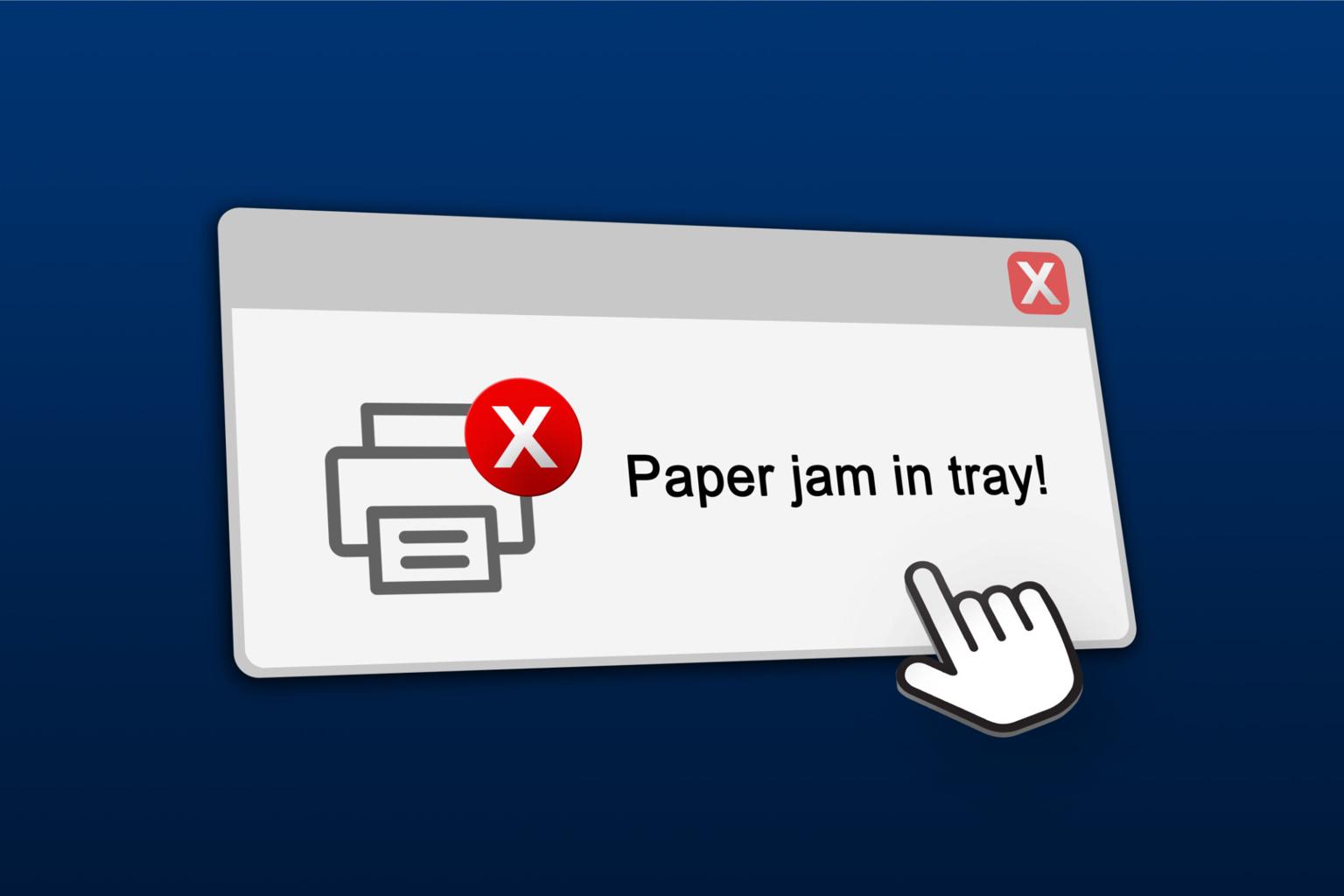
While installing a printer, users often encounter common technical issues. These problems may occur due to outdated drivers, network configuration errors, or incorrect system settings.
- Printer driver unavailable error
- Printer showing offline status
- Print jobs stuck in the queue
- Printer not detected by the computer
- Network connection failure
- Compatibility problems with operating systems
Understanding these common issues helps users quickly identify the cause and resolve them effectively.
Printer Troubleshooting Guide
If your printer is not working correctly after installation, try the following troubleshooting steps:
- Restart both the printer and computer
- Check USB cable or wireless connection
- Clear the print queue
- Restart the Print Spooler service
- Update or reinstall the printer driver
- Check firewall or antivirus restrictions
- Ensure the printer firmware is updated
In many cases, reinstalling the correct printer driver resolves most installation problems.

Printer Maintenance Tips
Proper printer maintenance is important to ensure long-term performance and consistent print quality. Regular maintenance helps prevent technical problems and extends the lifespan of the printer.
- Update printer drivers regularly
- Clean printer heads periodically
- Use high-quality paper and ink
- Avoid sudden power interruptions
- Keep printer firmware updated
- Perform routine printer diagnostics
Maintaining your printer properly ensures better performance, fewer technical issues, and consistent printing quality.
Conclusion
Printer setup and driver installation play a crucial role in ensuring reliable printing performance. Installing the correct driver, configuring the printer connection properly, and following the recommended setup steps can prevent most common printing issues.
Whether you are installing a printer at home or configuring one in an office environment, proper installation ensures smooth communication between the computer and printer hardware. By following the steps outlined in this guide, users can successfully set up their printers, troubleshoot common problems, and maintain optimal printing performance for years.